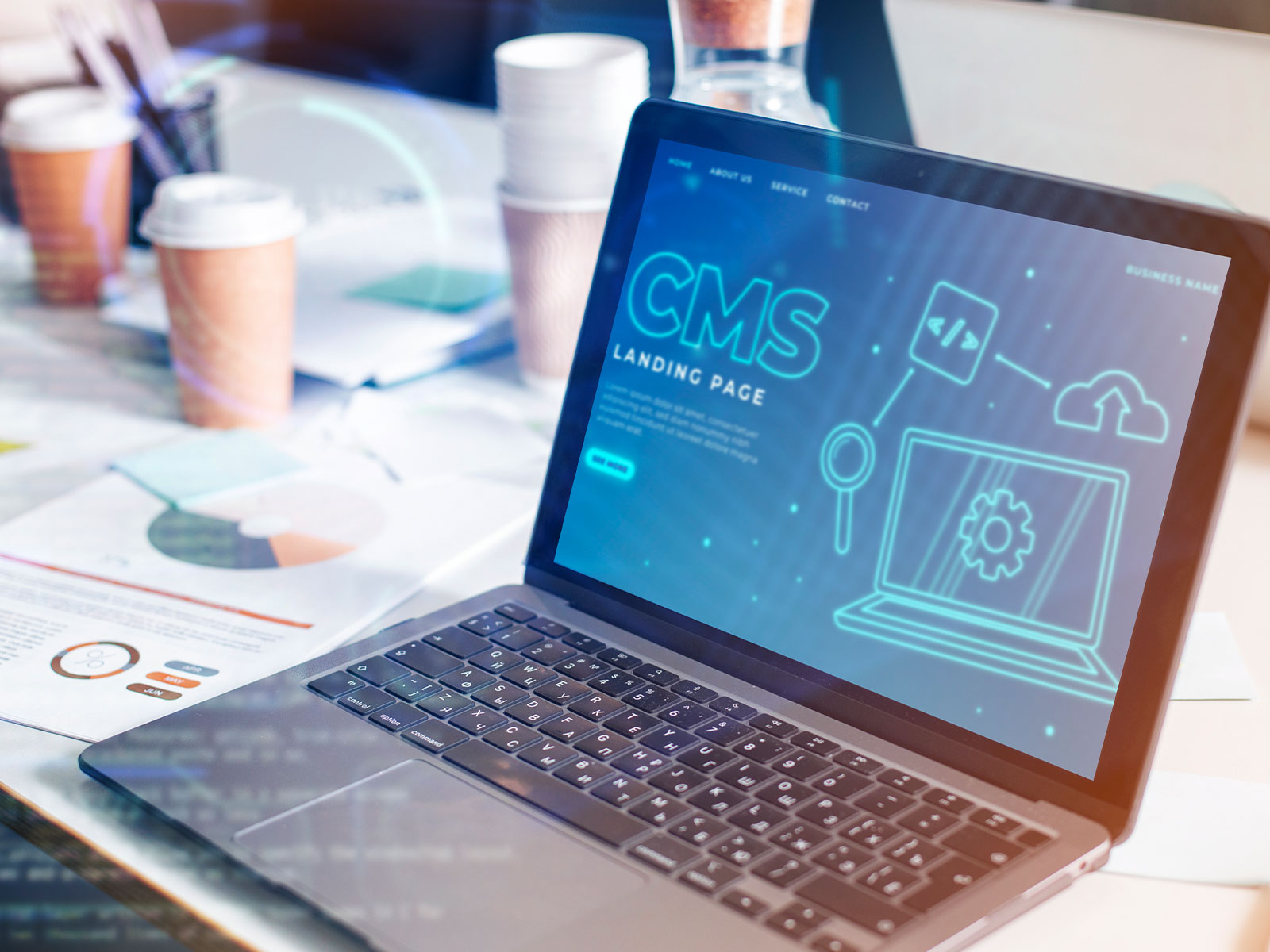
A Comprehensive Guide on How to Install WordPress Locally
Development
Starting a WordPress development journey? Explore WordPress development locally with our "How to Install WordPress Locally" guide. Regardless of your experience as a developer, this extensive guide will provide you with the knowledge and abilities needed to operate WordPress offline effectively. Learn how to use local installs to test new features, plugins, and themes without worrying about affecting your live website. Learn about the purposes for local development, the specifications for the system, and the achievable steps that will help you optimize your installation, build a staging environment, and fix frequent problems.
Why Install WordPress Locally?
You can work around with new concepts, themes, and plugins in a hidden platform bound to your website. Installing WordPress entails just that! Here is some strong proof for doing so:
1. Safe and Sound
Installing WordPress locally provides a secure environment for experimentation. Whether you're testing new features, plugins, or themes, the local setup allows you to innovate without repercussions on your live website, with no more fear of breaking things or losing valuable data. It's your digital platform where creativity thrives and mistakes don't leave a lasting impact. So, venture forth, make changes fearlessly, and let your creativity soar securely through your local WordPress installation.
2. Anywhere, Anytime
Have you ever enjoyed coffee in a remote cabin without the internet and got a flash idea? Do not be afraid! You may work on your website offline using a local WordPress install. WordPress local development isn't confined by internet accessibility. It liberates you to work on your projects anywhere, anytime, even without an internet connection. Whether on a plane, in a remote location, or facing a shaky internet connection, your local WordPress system travels with you.
3. Learn at Your Pace
Installing WordPress is akin to practicing if you're just getting started. Before going live, you may become comfortable and learn how it's done. If you're new to WordPress, installing it offers a fantastic opportunity to learn quickly. You can experiment, explore, and understand how WordPress functions without the pressure of an online audience. It allows you to familiarize yourself with the platform and try out various features, plugins, and themes without fearing breaking a live site.
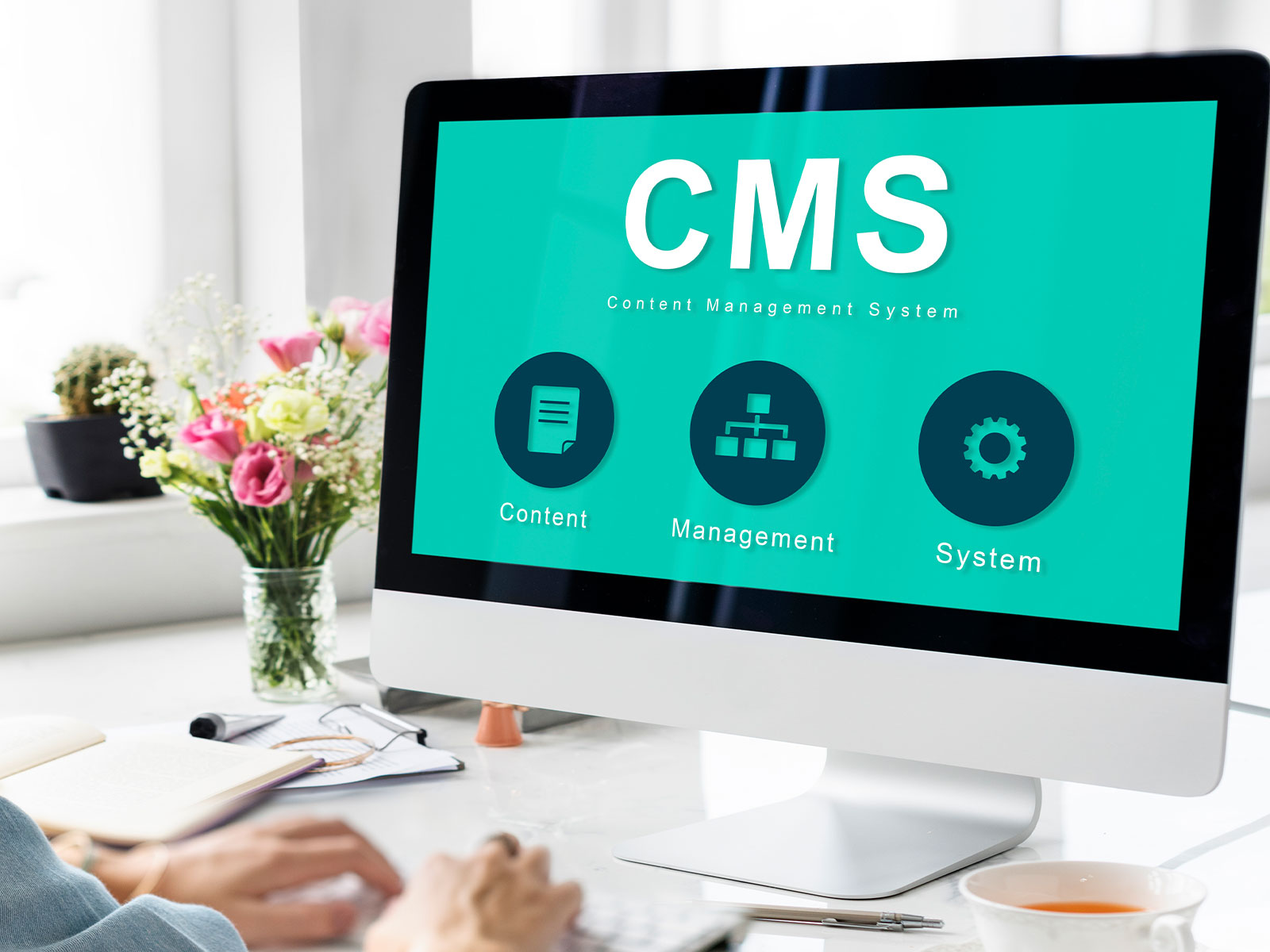
How to install Wordpress
Installing WordPress is straightforward; you can do it in just a few steps. Here's a simplified guide on how to install WordPress:
Choose a Domain and Hosting
- While selecting a domain name for your website, choose a unique and easy-to-remember.
- Select a reliable web hosting provider. The most used choices include Bluehost, SiteGround, and HostGator.
Install WordPress
Most hosting providers offer a simple, one-click WordPress installation. Here, we'll use Bluehost as an example:
1. Go to the Bluehost website to create an account.
2. Select a hosting package according to your requirements.
3. Set up a new domain or use an existing one.
4. Choose your package specifics, enter your account information, and finish the transaction.
5. Go into your Bluehost account after registering. Locate the "Website" area in the control panel and select "Install WordPress."
6. To customize your WordPress installation, adhere to the on-screen directions. After selecting your domain and entering your login information, click "Install."
7. WordPress will be installed for you immediately by Bluehost. It takes a few minutes to complete.
8. After completing the installation, you will receive login information. Use these credentials to access your WordPress dashboard.
Set Up Your WordPress Site
Select a theme for your website by navigating to Appearance, then Themes. To change your website’s title, slogan, and other options, go to "Settings. “Include essential sections such as Contact, About Us, and Home. To create pages, select Pages, then Add New. Installing plugins will give you access to more functionality. To begin producing material, select Posts and "Add New."
Secure Your Website
To maintain security, ensure WordPress, themes, and plugins are updated. Make sure your database and WordPress login have secure passwords. Think about utilizing a security plugin.
Backup Your Website
Make a backup of your website. Make sure to back up your website regularly. Numerous hosting companies provide automatic backup options. Consider manually backing up your website using c-Panel or plugins as well.
Tips for Your WordPress Setup
Setting up a WordPress platform for learning and experimenting is a great concept. Here are some brief pointers:
Make a site backup using plugins or your hosting company before making significant changes. Try several themes to get a sense of their appearance and features. Try out several plugins to see how they improve or alter the functioning of your website. Before changing your live site, test in safe surroundings using staging environments. Update WordPress, themes, and plugins to ensure security and optimal functionality. Accept failures as teaching moments. For progress, troubleshoot and comprehend error signals.
Troubleshooting Your WordPress Setup
To find possible issues while experiencing problems, think about turning off plugins and returning to the default theme. Examining error logs, which your hosting provider or WordPress plugins may offer, is a valuable technique to learn more about the issue. If you have white screens, try raising the PHP memory limit in your wp-config.php file. To guarantee a smooth connection in case of database-related problems, confirm the credentials in the wp-config.php file twice. Regenerating or changing the permalink to "Post name" are two common fixes for 404 issues in permalinks. Additionally, ensure your FTP credentials are accurate if you get FTP issues when uploading files. Accept every troubleshooting task as a necessary step towards becoming an expert in WordPress!
Conclusion
This step-by-step guide on how to install WordPress ensures an effortless experience for beginners and seasoned developers.
You are free to explore, learn, and have fun. It has opened the doors to your WordPress community, whether you are an experienced developer or just getting started. Complete the installation by entering the database credentials and following the setup process. Whether you're using MAMP on macOS or XAMPP on Windows, the installation procedure is relaxing and instructive due to the straightforward processes. So don’t be afraid to start using WordPress and let your creativity go free!
FAQs:
Why should I install WordPress locally?
Local installations provide a safe environment to test new features, plugins, and themes without affecting your live site, fostering experimentation and learning.
Can I install WordPress offline?
Absolutely! Download the latest WordPress version, set up a local server environment like XAMPP or MAMP, and start developing offline at your convenience.
How can I optimize my local WordPress installation?
Enhance performance by turning off unnecessary plugins, increasing PHP memory limit, using a lightweight theme, employing a caching plugin, and optimizing images.
Recents

E Commerce Training Courses to Boost Your Career
Read Article →
The Best AI Automation Course for Business Growth 2026
Read Article →
NAVTTC Free Courses: Complete Guide to Skill Development
Read Article →
Best IT Institute Faisalabad 2026 The Ultimate Guide to Building a Successful IT Career
Read Article →
Best IT Short Courses in Faisalabad: A Complete Guide for 2026
Read Article →
Python Basics: The Ultimate Step by Step Guide to Master Python Programming
Read Article →